
Prepare and consent
Who it is for
For the Microsoft 365 admin, who chooses the channel and pilot group and consents once to Romy reading.
Why
Before anything reaches a device, you settle who takes part and what Romy may read. Together this takes about 20 minutes.
- 1Microsoft 365 admin
Choose channel and pilot group
Romy starts small, with a few devices, a few people and one channel. The channel decides which version you get. The default is stable.
How to do it
- Pick a channel. We recommend stable. Beta suits you if you want to test earlier.
- Name 1–5 pilot devices and their users.
- Name the three admin accounts for Microsoft 365, Intune and Teams. This can be one person.
- Time
- 15 minutes
- Check
- The list is ready and Romy operations has it.
- Undo
- Nothing to undo, because nothing has changed yet.
Next, step 2, Sign in to the Romy Platform
- 2Microsoft 365 admin
Sign in to the Romy Platform
You look first and decide afterwards. The portal shows sample data before you grant anything from your environment.
How to do it
- On Test Romy, open the Romy Platform step and sign in with Microsoft.
- Look around the portal with sample data.
- Time
- 2 minutes
- Check
- The portal opens with your name at the top right.
- Undo
- Entra ID → Enterprise applications → “Romy Portal Login” → Delete.
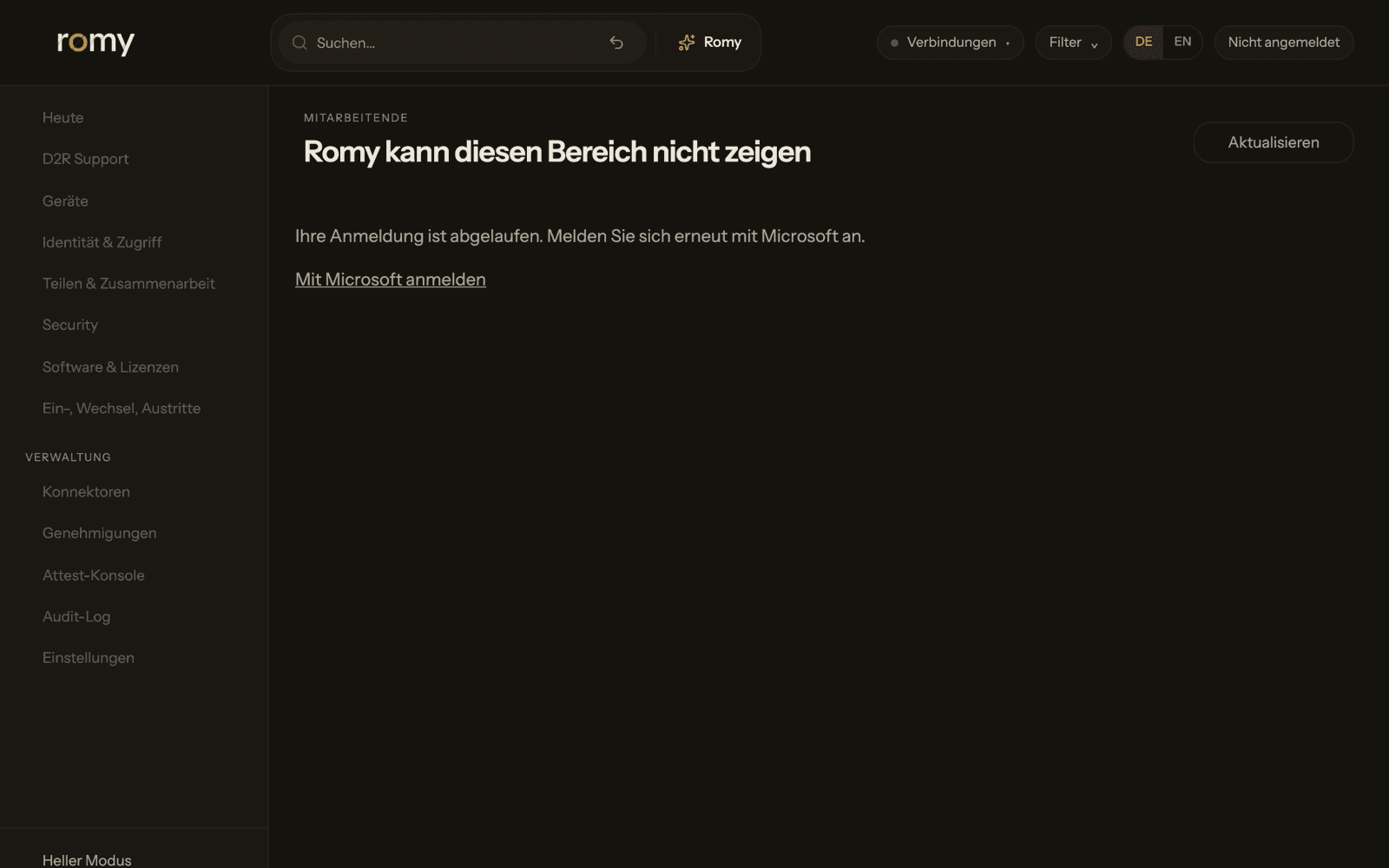
Screenshot login.getromy.com/onboarding, not signed in Read more
Permissions in this step
openid · profile · email
Required- Type
- Delegated
- What for
- Sign-in through Easy Auth. Romy recognises you and opens your portal. The registration “Romy Portal Login” (adf6e54b) requests no Graph permission and has no access to your organisation’s data
Next, step 3, Let Romy Diagnostics read
- 3Microsoft 365 adminAccess level 2
Let Romy Diagnostics read
So Romy knows who is writing and which device is theirs. You consent once, Romy only reads, and you can revoke the consent at any time.
How to do it
- On Test Romy, open the Romy Diagnostics step and click Consent.
- Microsoft shows the full list. Consent with an account that holds the required role.
- Time
- 2 minutes
- Check
- Entra ID → Enterprise applications → “Romy Diagnostics” → Permissions. You will only see “Read” permissions.
- Undo
- Delete the same enterprise application. From then on Romy reads nothing.
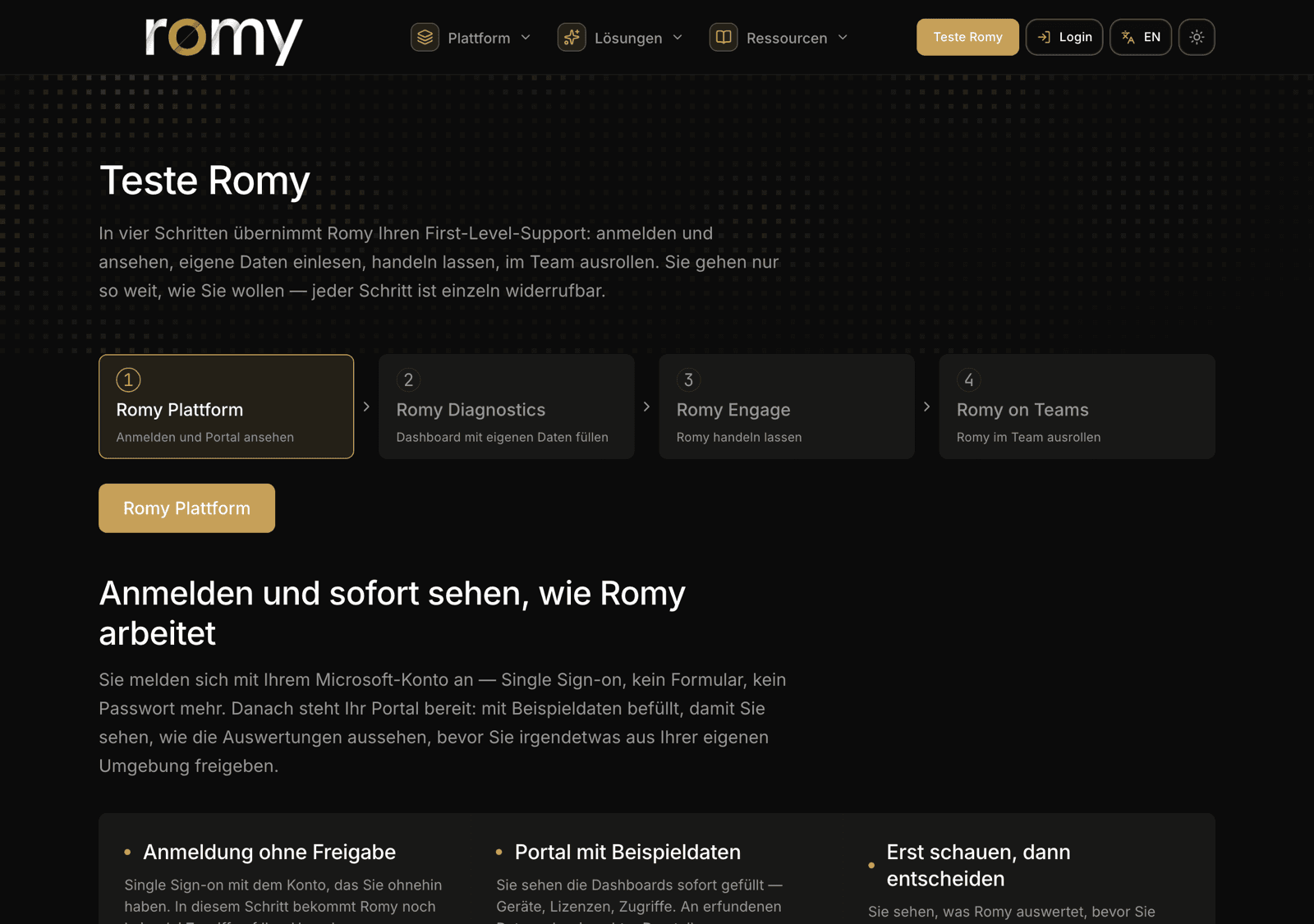
Screenshot getromy.com/teste-romy What Romy may read. All application permissions, all read-only
DeviceManagementManagedDevices.
RequiredRead. All - Type
- Application
- What for
- Model, OS, compliance, encryption, last sync
Device.
RequiredRead. All - Type
- Application
- What for
- Device objects in Entra ID. This is how Romy finds devices that are not managed at all
DeviceManagementConfiguration.
RequiredRead. All - Type
- Application
- What for
- Your configuration and compliance policies
DeviceManagementApps.
RequiredRead. All - Type
- Application
- What for
- Installed apps per device, your Intune catalog
DeviceManagementServiceConfig.
RequiredRead. All - Type
- Application
- What for
- Intune baseline settings to rate readings against
User.
RequiredRead. All - Type
- Application
- What for
- Who is writing, with department and licence. Links device and person
Group.
RequiredRead. All - Type
- Application
- What for
- Groups and their owners
GroupMember.
RequiredRead. All - Type
- Application
- What for
- Who is in which group
Directory.
RequiredRead. All - Type
- Application
- What for
- Resolving objects (person ↔ device ↔ group)
RoleManagement.
RequiredRead. Directory - Type
- Application
- What for
- Who holds which admin role
Policy.
RequiredRead. All - Type
- Application
- What for
- Conditional Access: enforced or report-only
AuditLog.
RequiredRead. All - Type
- Application
- What for
- What changed in 30 days, the last sign-in and who has registered MFA. Never a secret
Organization.
RequiredRead. All - Type
- Application
- What for
- Domains and purchased licences
Reports.
RequiredRead. All - Type
- Application
- What for
- Microsoft 365 usage per service
ReportSettings.
RequiredRead. All - Type
- Application
- What for
- Whether Microsoft hides names in usage reports. Otherwise the reports cannot be attributed
Sites.
RequiredRead. All - Type
- Application
- What for
- Find SharePoint sites and show their sharing (metadata only, no file contents)
Sites.
RequiredSelected - Type
- Application
- What for
- Metadata only of sites your admins explicitly grant to Romy
Also in the registration and unused today. 19 in total
ServiceHealth.
to be removedRead. All - Type
- Application
- What for
- Microsoft 365 service health, no customer data. Not used today
SecurityEvents.
to be removedRead. All - Type
- Application
- What for
- Secure Score and security alerts. Not used today
Next, step 4, Create groups, scope tag and role